
What PDP optimization does: The Brand Audit shows the store-level picture. PDP optimization is where you actually fix it, one product at a time. This is how you take a product from listed but never recommended to one AI names when a shopper asks what to buy — by fixing the product data and content AI reads, then checking the mentions move. 1. Open Products. From the left menu, click Products. This is your synced catalog and how AI assistants are recommending each product — every SKU you sell, scored by how often AI puts it forward.
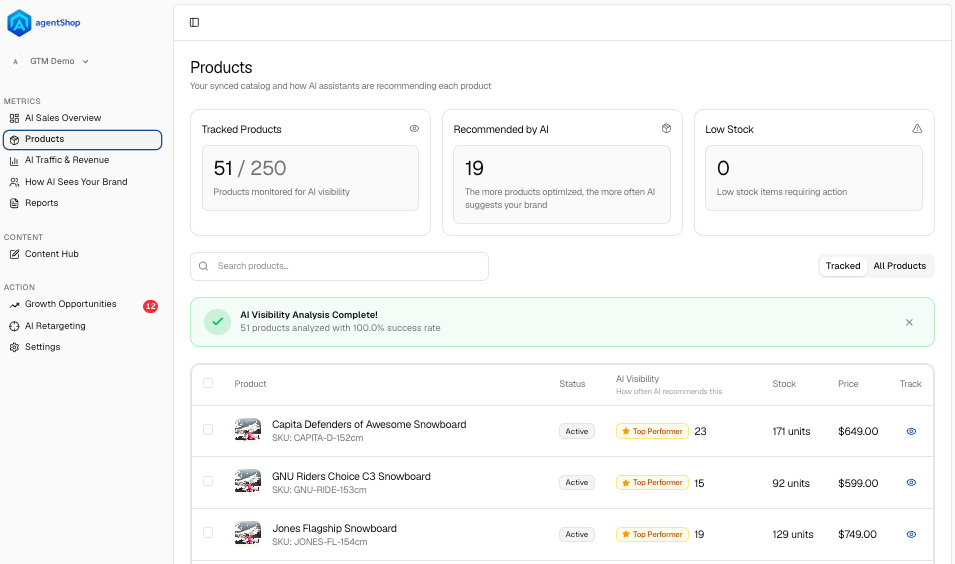
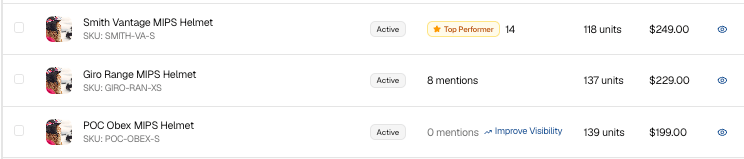
2. Read the top-line numbers. Three cards set the scene: Tracked Products (how many you’re monitoring for AI visibility), Recommended by AI (how many AI actually suggests today), and Low Stock. The gap between the first two is your whole opportunity — products AI could recommend but doesn’t yet. 3. Confirm the analysis is complete. When the scan finishes you’ll see AI Visibility Analysis Complete with the number of products analyzed. That means every product now has a visibility read you can act on. 4. Scan the AI Visibility column. For each product, the AI Visibility column shows how often AI recommends it — a mention count, or “0 mentions” with an Improve Visibility link. Zero mentions means AI never brings that product up. Those are your priorities. (Toggle Tracked / All Products, and check Stock and Price right in the row so you’re not optimizing something you can’t sell.)
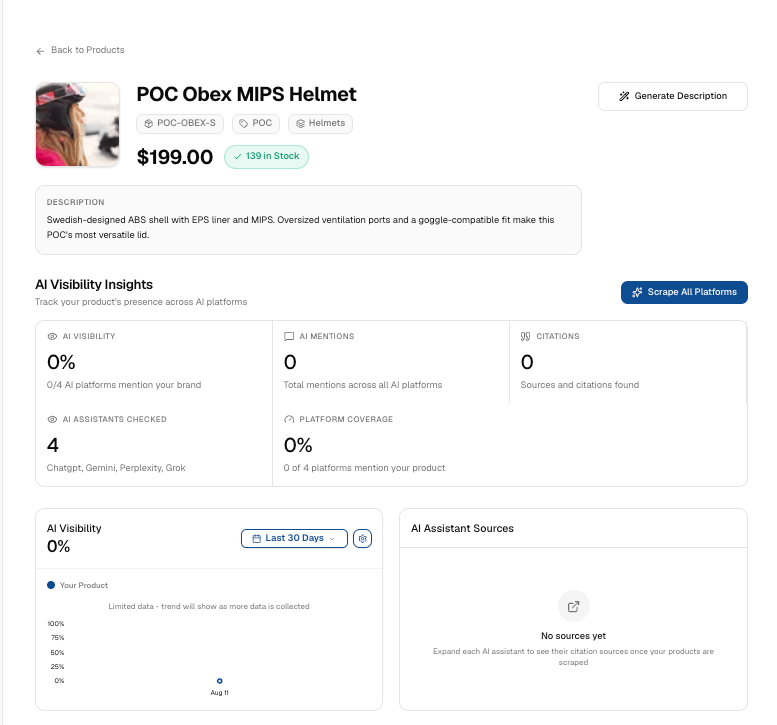
5. Pick a product to fix. Find a strong product sitting at 0 mentions and click Improve Visibility (or the product name) to open its page. 6. Open the product page. This is the full picture for one product — its description, how AI currently sees it, and the specific tasks to fix it.
7. Read the AI Visibility Insights. The top panel tracks the product’s presence across AI platforms: AI Visibility (share of platforms mentioning it), AI Mentions, Citations, AI Assistants Checked, and Platform Coverage. A row of zeros here is the “listed but not chosen” problem, at the product level. 8. Scrape all platforms for a fresh read. Click Scrape All Platforms to re-check the product across AI assistants and pull in any sources and citations. This refreshes the numbers and fills in AI Assistant Sources.
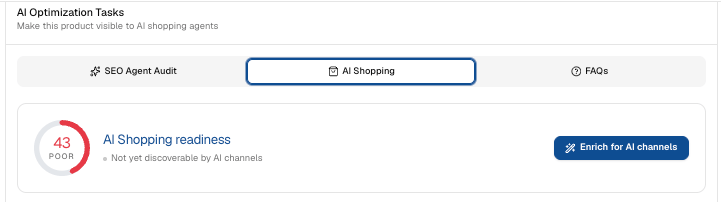
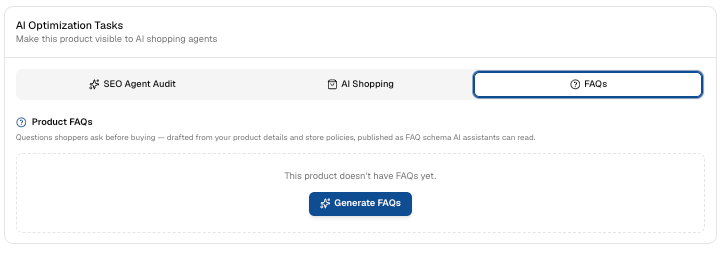
9. Go to the AI Optimization Tasks section. Under Make this product visible to AI shopping agents, you’ll find three tabs — SEO Agent Audit, AI Shopping, and FAQs. This is the work list for this product.
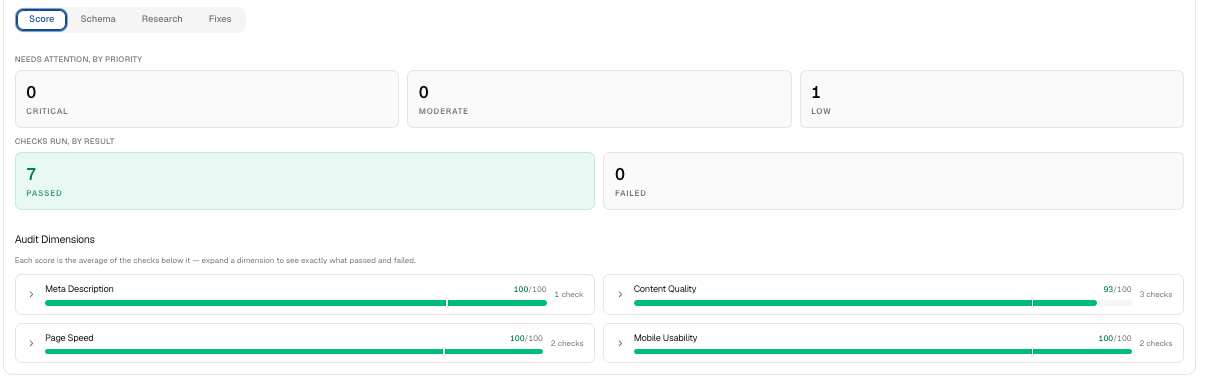
10. Run the SEO Agent Audit. The SEO Agent Audit grades the product’s pages and lists what’s missing or weak, scored across dimensions — Title Tags, Meta Description, Content Quality, Structured Data, Page Speed, Mobile Usability, and Internal Linking — with fixes ranked by priority (Critical / Moderate / Low). Its sub-tabs are: Score. The breakdown of what’s behind the grade: Title Tags, Meta Description, Content Quality, Structured Data, Page Speed, Mobile Usability, and Internal Linking, plus how many issues need attention, by priority.
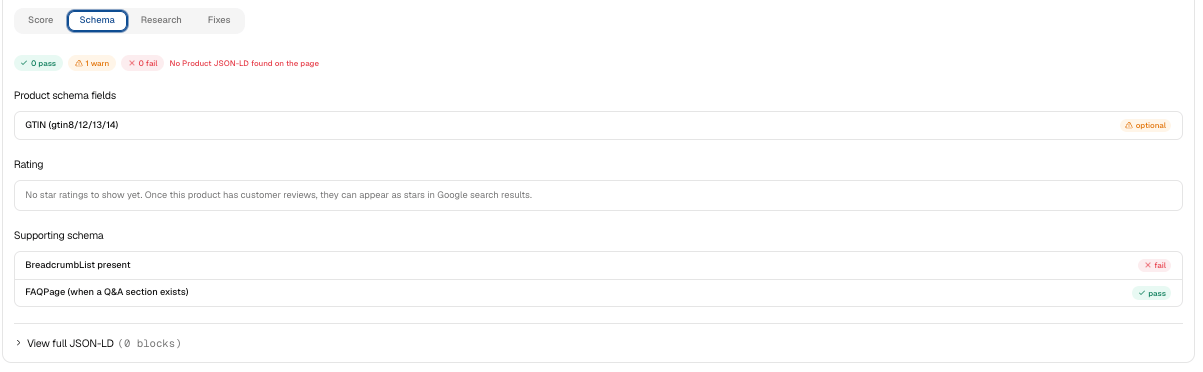
Schema. The structured data (JSON-LD) generated for this page, so you can see exactly what will publish once fixes go live.
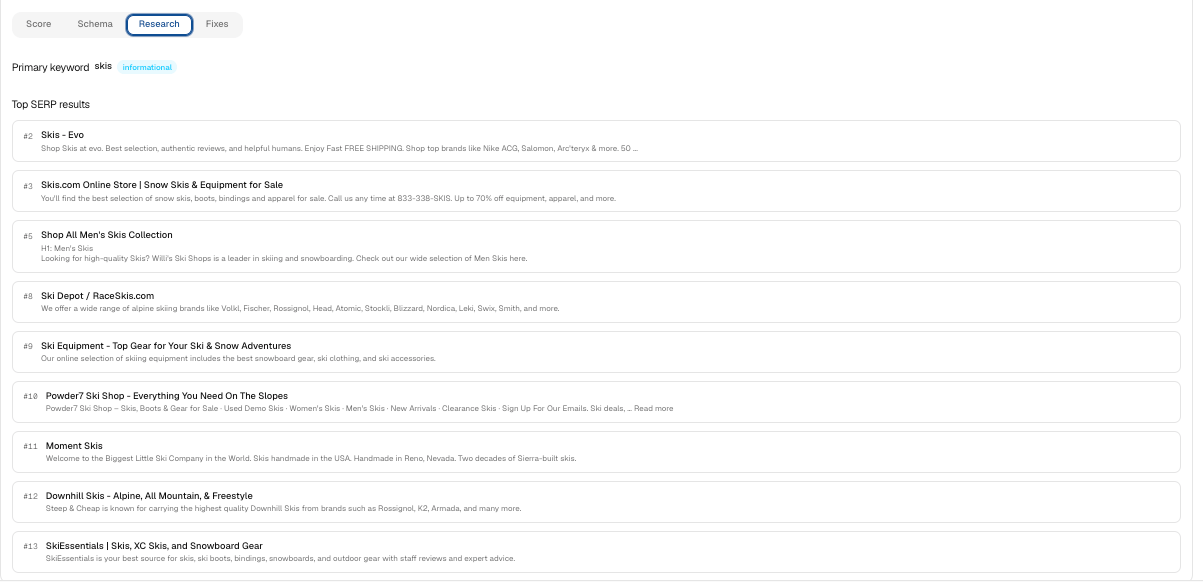
Research. The evidence behind each recommendation: the page tests the audit ran and what they found.
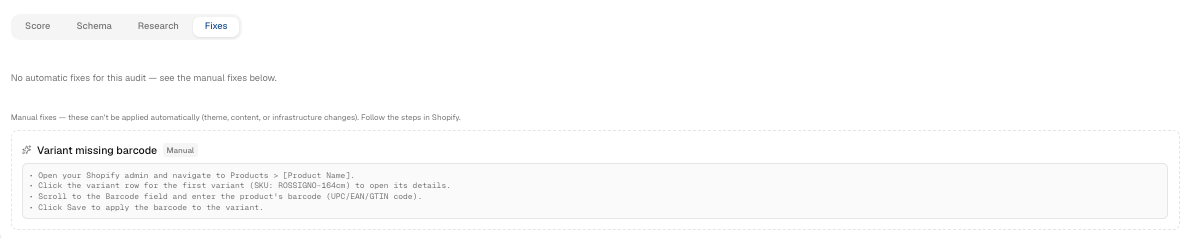
Fixes. The ranked list of fixes for this page. They’re saved to the product automatically; enable the AgentShop SEO Injection app embed to publish them to your storefront.
Publishing the fixes (important). The fixes are saved to the product automatically — but they do not go live on your store until you enable the “AgentShop SEO Injection” app embed in your Shopify theme editor. This is a one-time toggle; until it’s on, published scores (like Structured Data) won’t reflect the fixes. Enabling it publishes structured-data, canonical, and social tags to your live storefront at the SEO layer, so there is no separate per-product “Apply Fixes” button to click.
11. Set up AI Shopping. The AI Shopping tab covers the structured product data that lets AI assistants read and recommend the item correctly — the details that decide whether you’re an option at all.
12. Generate FAQs. On the FAQs tab, click Generate FAQs. These are the questions shoppers ask before buying — drafted from your product details and store policies, and published as FAQ schema AI assistants can read. It’s one of the fastest ways to give AI something quotable about your product.
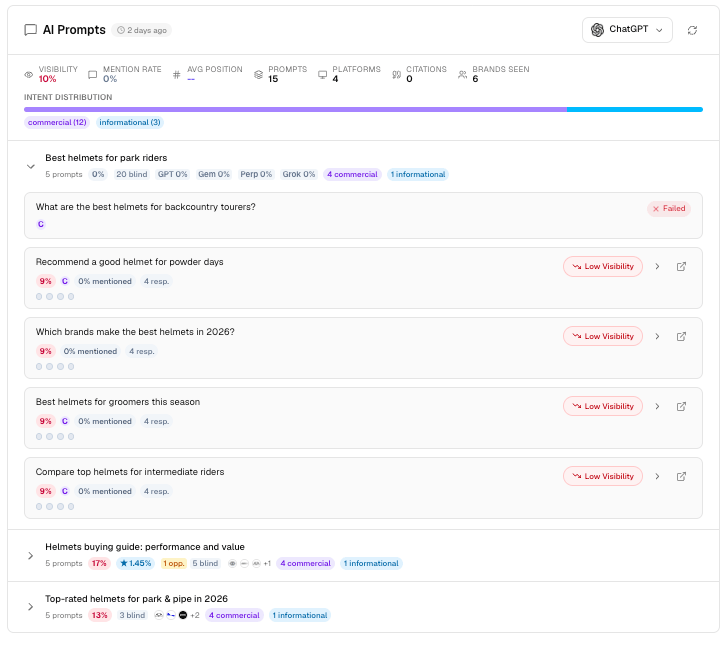
13. Review the AI Prompts. Scroll to AI Prompts to see the real questions shoppers ask in this product’s category — grouped by intent (transactional, commercial, informational) — and whether your product shows up. A Not Found on a prompt is a concrete miss you can now target. Switch platforms (ChatGPT, Gemini, and others) to compare.
14. Strengthen the description, then re-check. If the copy isn’t answering those prompts, use Generate Description to rewrite it so it does. Then scrape again and watch the mentions move. Repeat for your next zero-mention product.