

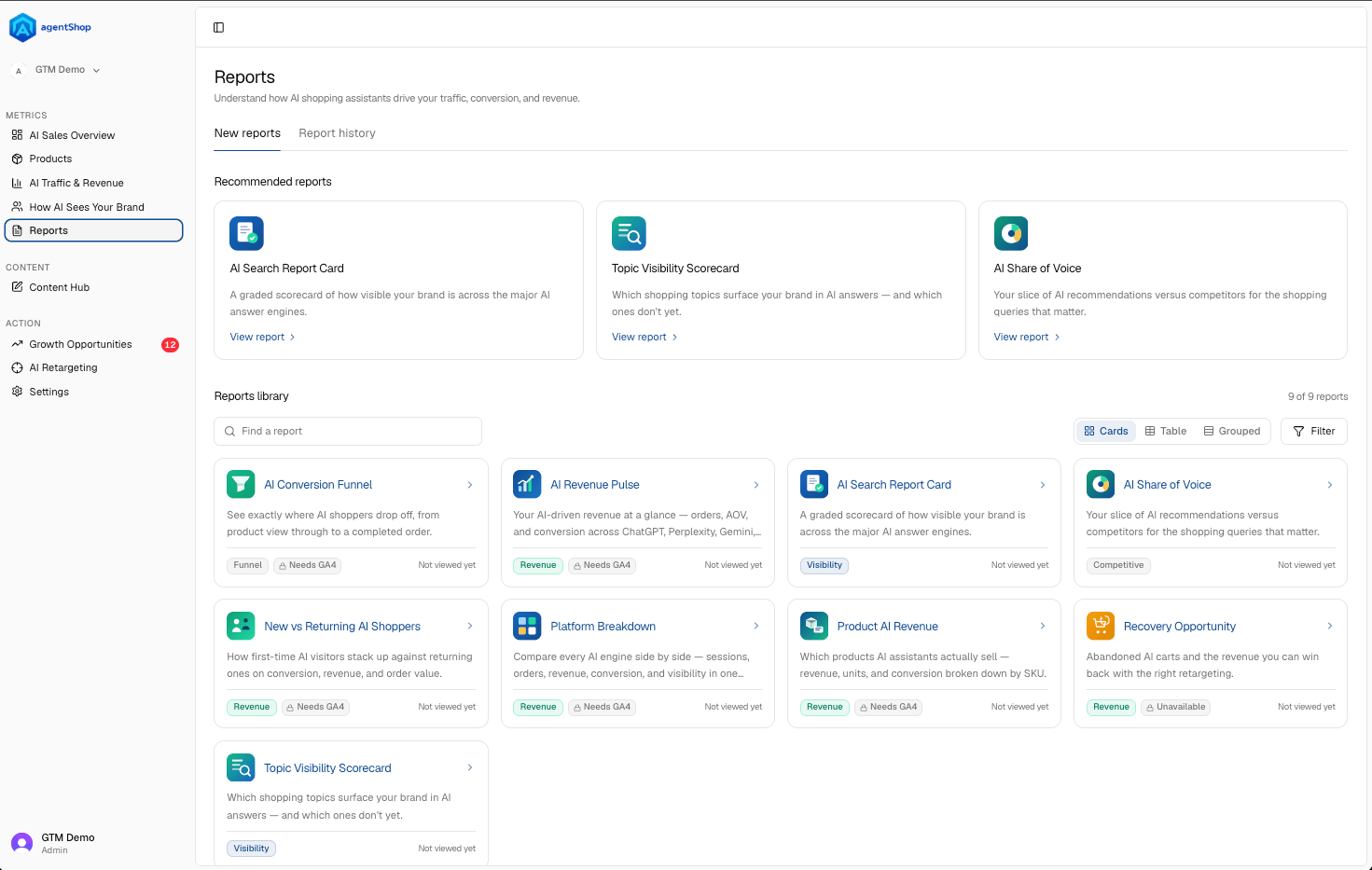
The Reports page is the library where the AI shopping data gets organized into ready-made views — each one answering a specific question about how AI assistants drive your traffic, conversion, and revenue. Rather than one giant dashboard, it’s a shelf of focused reports you open as needed. Two tabs sit at the top. New reports is the catalog of everything available; Report history is where the ones you’ve already run are saved, so you can return to a past view without rebuilding it.
The page is organized into three bands so you don’t have to hunt:
  • Recently used surfaces the reports you opened last — your quickest path back to whatever you were just looking at.
  • Recommended reports highlights a few worth checking regularly (things like AI Revenue Pulse, Platform Breakdown, and the AI Search Report Card).
  • Reports library is the full set — nine in total — each shown as a card with a one-line description, a category tag (Revenue, Visibility, Competitive, Funnel), and when you last viewed it.
The category tags are the fastest way to navigate by intent. Chasing money questions? Look at Revenue. Worried about whether AI mentions you? Visibility. Sizing up rivals? Competitive. Diagnosing drop-off? Funnel. A report can also show an Unavailable flag when its data source isn’t connected yet — that’s your cue to finish a setup step before it’ll populate. The controls on the library let you find things fast: a Find a report search box, a Filter, and three view modes — Cards (visual, description-forward), Table (dense, scannable), and Grouped (clustered by category). Pick whichever matches how you think; the underlying reports are the same. The practical way to use this page: start from Recommended or Recently used for your routine checks, and dip into the library — filtered by the category tag that matches your question — when you need a specific answer. Then open the report itself, where the date-range and source filters let you slice it further. For a breakdown of each individual report, see the Reports section of this guide.